
On this page
So you’ve recorded a great sales video, you’ve stored it in Google Drive, and now you want it to show up right inside a landing page or an email — without sending people off to download a file first. How do you actually do that?
That’s what we’re going to walk through today. Embedding simply means placing the Google Drive video player directly onto a web page or email, so the video plays in place and your reader never has to leave what they’re looking at. It’s a small touch that can make a real difference, because video is one of the most engaging formats you can put in front of someone — according to Campaign Monitor, adding video to an email can lift open rates by around 19% and boost click-through rates by as much as 65%.
If your team already keeps its files in Google Drive, you can grab an autogenerated embed code and drop it wherever you need it. Let’s go over how to do that — and then talk about the one situation where a trackable link is actually the smarter call.
How To Embed a Video From Google Drive
The exact menu wording in Google Drive shifts from time to time, so think of these as the general path rather than pixel-perfect clicks. The goal is always the same: open the video, make sure it’s shareable, and copy the <iframe> embed code Drive generates for you.
1. Open the video and confirm sharing
In Google Drive, double-click your video to open it in the preview player. Before you do anything else, check that the file’s sharing settings allow anyone with the link to view it — if the video is locked to your account, it won’t play once it’s embedded elsewhere. You can adjust this from the Share button or by right-clicking the file and choosing Share.
2. Find the “Embed item…” option
With the video open, click the three-dot More menu in the top-right corner. If you don’t see an embed option there directly, choose Open in new window first, then open the three-dot menu again — for many file types the Embed item… option lives on that full-window view.
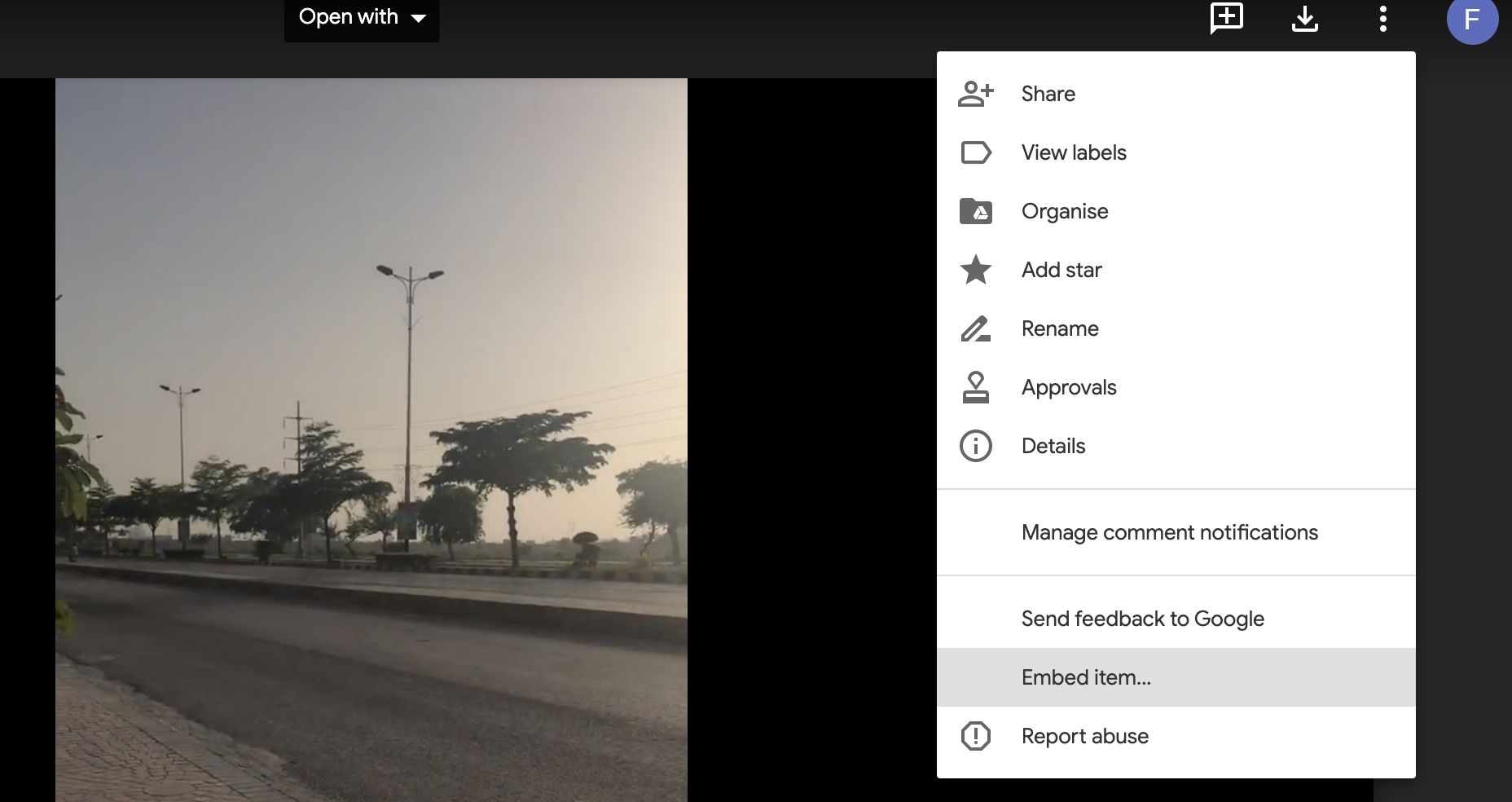
3. Copy the embed code
Google Drive will generate a snippet of HTML — an <iframe> tag. Copy that code exactly as it appears.
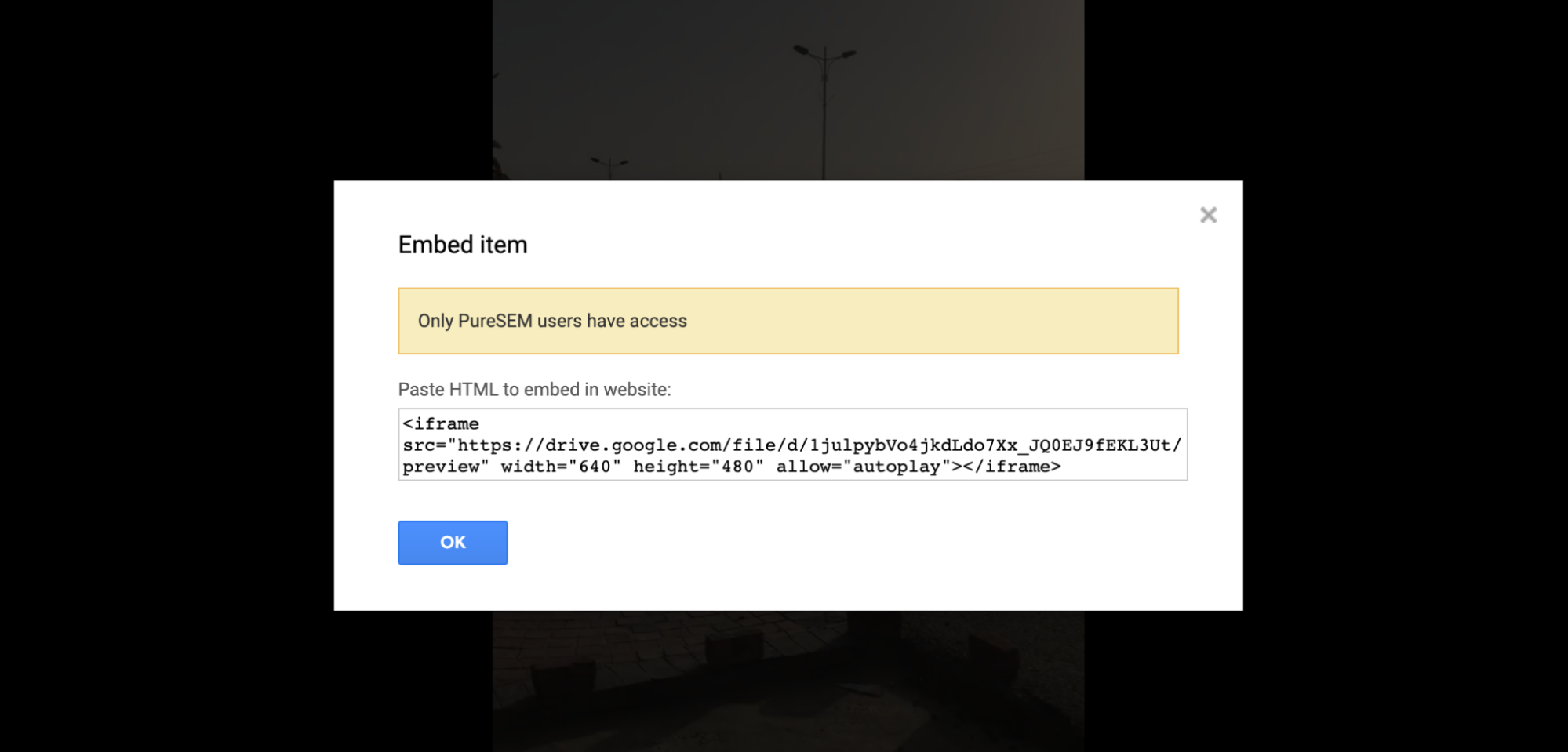
4. Paste it where you want the video to appear
Drop the code into the HTML of your website, blog post, or email builder, then save your changes. That’s it — your video should now play right in place.
A few things to check so playback goes smoothly:
- Confirm your page supports HTML5 video. Most modern site builders and email platforms do, but it’s worth verifying before you rely on it.
- Match the video to your layout. Make sure the dimensions and format suit where it’s going to live, so it doesn’t break your page design.
- Double-check permissions. If the file isn’t set to “anyone with the link can view,” your viewers will see an error instead of your video.
- Paste the code into a plain-text editor first. Dropping it into something like Notepad lets you confirm the
<iframe>is intact before it goes live.
Embed… or Share a Trackable Link?
Here’s where it gets interesting. Embedding is genuinely useful — it keeps people on your page and gives them a richer experience than a wall of text ever could. For a marketing landing page or a blog post, it’s often exactly the right move.
But embedding does have one real blind spot, and it matters a lot for sales teams: you can’t see who watched. A standard Google Drive embed plays the video, and that’s about all it does. It won’t tell you which prospect opened it, how far they got, or whether they came back for a second look.
This doesn’t mean you should stop embedding videos — for public-facing marketing content, embedding is still a great choice. It does mean, however, that when you’re sending a video to a specific prospect as part of an active deal, a trackable link will usually serve you better than a silent embed. Knowing that a buyer rewatched your demo three times is the kind of signal that tells a rep exactly when to follow up.
That’s the trade-off in a nutshell:
- Embed when the video is part of a public page and reach matters more than analytics.
- Share a trackable link when you need to know how an individual prospect engaged so you can act on it.
Here’s how you can create trackable shortlinks for sales documents when that’s the better fit.
How Content Camel Can Help
As your video library grows, you’ll want a single place to keep all of it organized — and ideally one that closes that tracking gap we just talked about. That’s where a sales content management platform comes in.
With Content Camel, you can:
- Keep every video and document in one dashboard. Instead of digging through Drive folders, your reps find the right asset in seconds.
- Share with an autogenerated short link. Send a clean, branded URL across any channel — no embed code wrangling required.
- See how each prospect engages. Because the link is trackable, you can tell who opened your video, how long they watched, and what they looked at next — the exact insight a plain embed leaves on the table.
- Organize content by buyer stage. When your assets are sorted to match the buyer’s journey, it’s far easier to meet prospects with the right content at the right time.
It’s the faster, friendlier way to share video — and it hands your team the engagement data that helps them follow up at exactly the right moment.
Want to organize the rest of your Drive while you’re at it? See Google Drive Labels: what else your sales team needs.
Final Thoughts
Embedding a video from Google Drive is a handy skill, and for public marketing content it’s often all you need. The key is matching the method to the moment: embed when you want reach and a richer page, and reach for a trackable link when you want to know exactly how a prospect engaged so your team can act on it.
Ready to organize your videos and finally see who’s watching? Sign up for a free trial of Content Camel here.