How To Share Videos On Google Drive
With Google Drive, it’s easy to manage all kinds of files and content — including video. But sharing video on Drive comes with a few quirks, and the right method really depends on who you’re sending it to.
Let’s walk through it together. There are three ways to share a video on Google Drive, and each one fits a different situation:
- Share by email within Drive — with specific permissions. Best when you’re sending to a known person and want to control who can view, comment, or edit.
- Share with a link in your email program — with specific permissions. Best when you’d rather paste a link into a message you’re already writing.
- Share by a public link. Best when you want anyone with the link to be able to watch.
So how you share comes down to what you’re trying to accomplish. If you want to share something publicly, a link is the way to go… and if you want to share it with a specific prospect, client, or customer, sharing by email gives you far more control.
One thing to keep in mind up front: sharing and organizing content on Google Drive gets progressively harder as your library grows. When you have a ton of assets, you can end up always hunting for the right file at the right moment. If that sounds familiar — and it’s an extremely common pain point in sales and marketing — a dedicated content management tool can help. A sales enablement tool like Content Camel organizes your library and lets you share and track links, so you can send any file type, including video, with a custom link on your own domain and actually see how it performs.
Organize. Share. Track all your collateral.
Here’s a step-by-step guide to each of the three methods.
Steps To Share Video On Google Drive
As we mentioned above, you can share videos on Google Drive in three ways, depending on your intent. Let’s go through each one in order.
1. Sharing by Email within Drive
Step 1: Upload the video to Google Drive, or drag and drop it from a local folder straight into your Drive folder.
Step 2: Right-click on your video to open the drop-down menu.
Step 3: From the menu, click Share. A text box will appear.
Step 4: Enter the email addresses of the people you want to share with, set the appropriate permissions, and click Share.
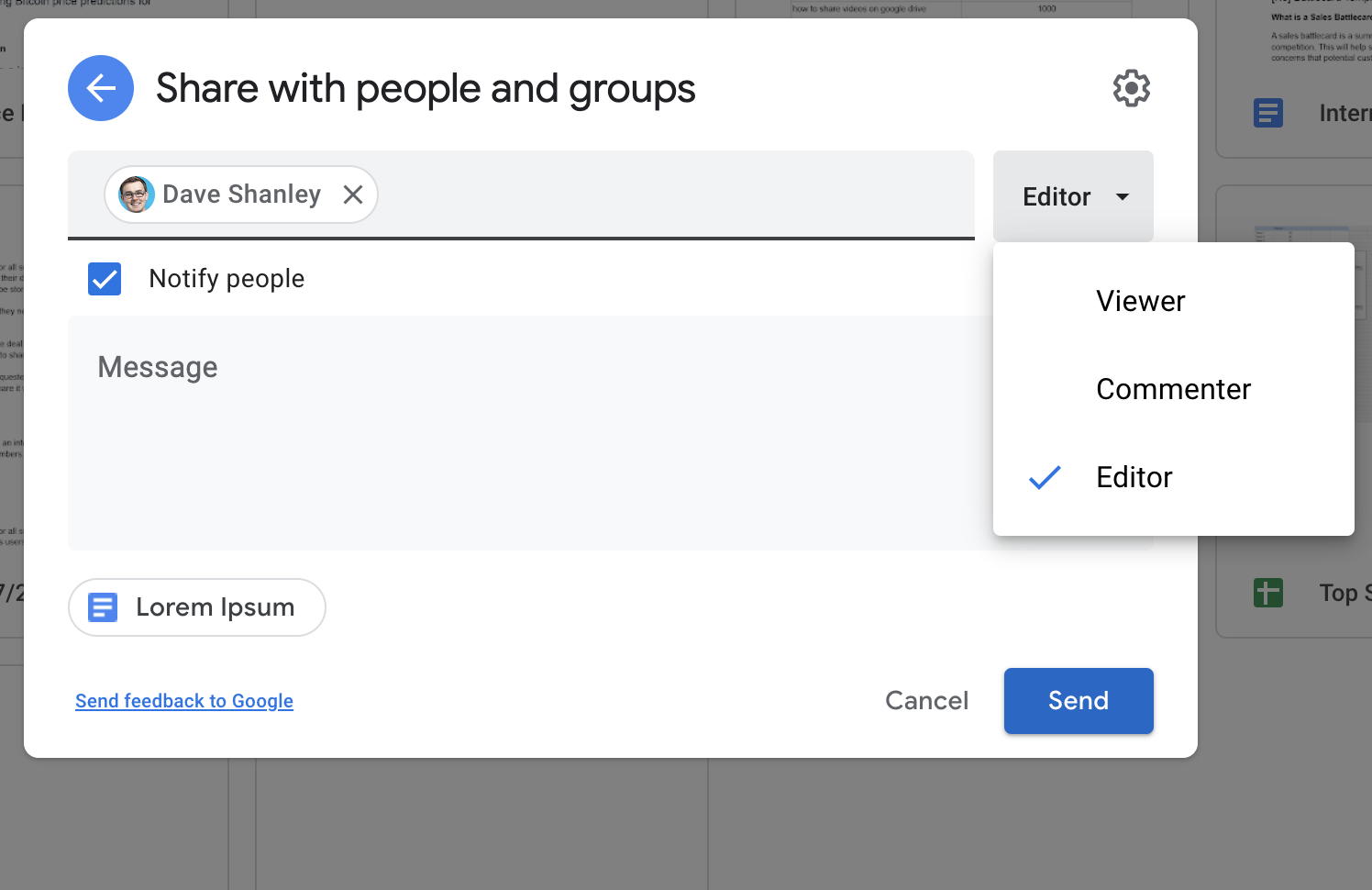
That’s all there is to sharing a video by email.
2. Sharing with a Link in Your Email Program
This approach is similar to attaching a file from your local drive — except here you’re pasting a link into an email you’re already writing.
Step 1: Upload the video to Google Drive, or drag and drop it from a local folder into your Drive folder.
Step 2: Right-click on your video to open the drop-down menu.
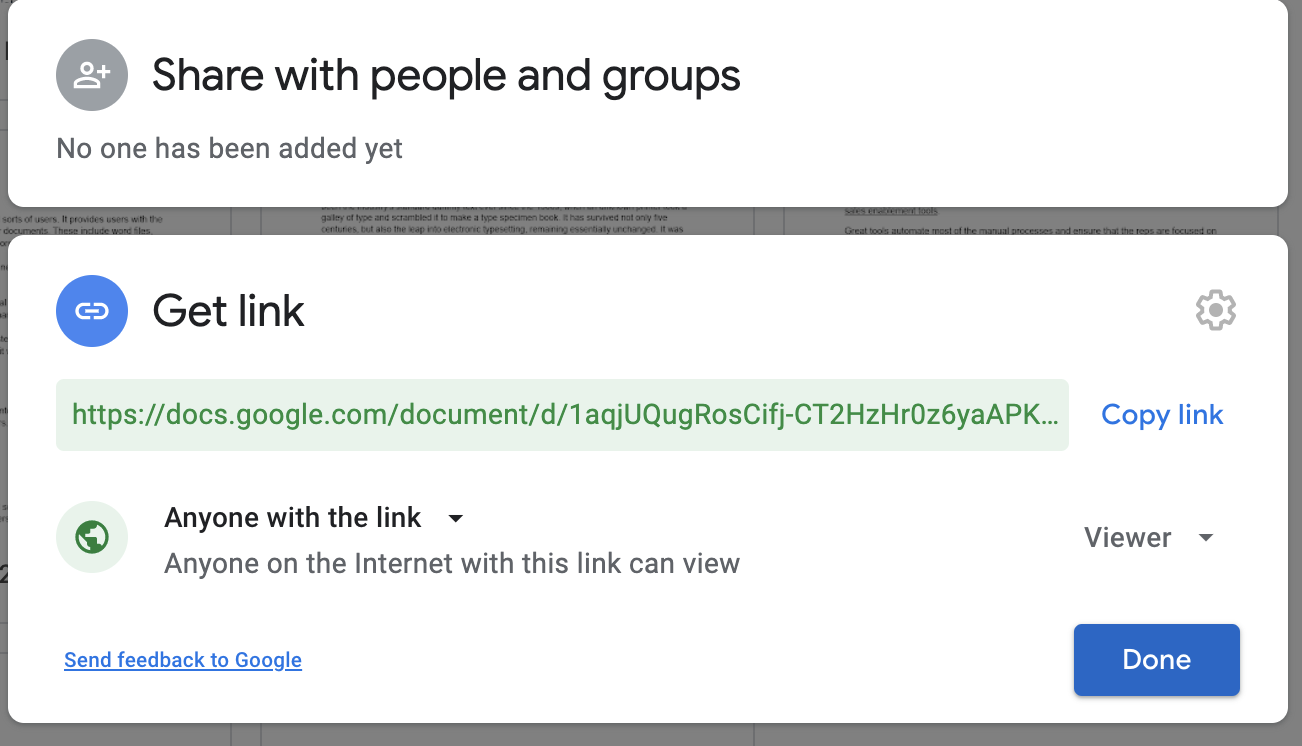
Step 3: From the menu, click Get Link. A text box will appear.
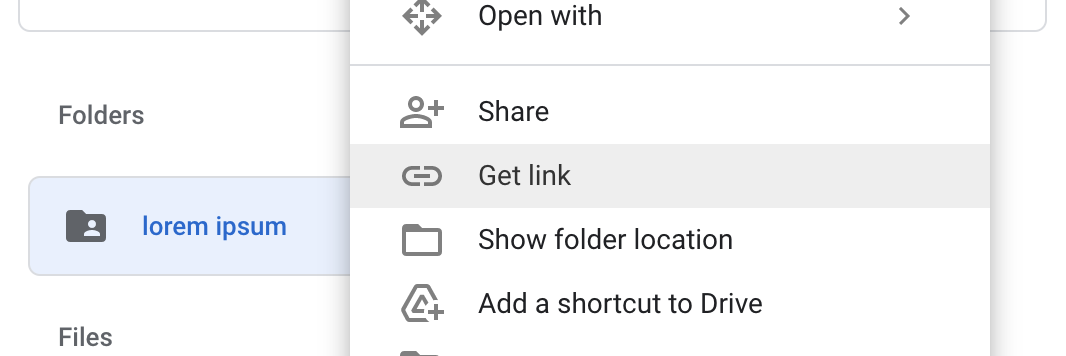
Step 4: In the text box, you’ll see an auto-generated URL for your video.
Step 5: Adjust the permissions to control who can open the file through that link.
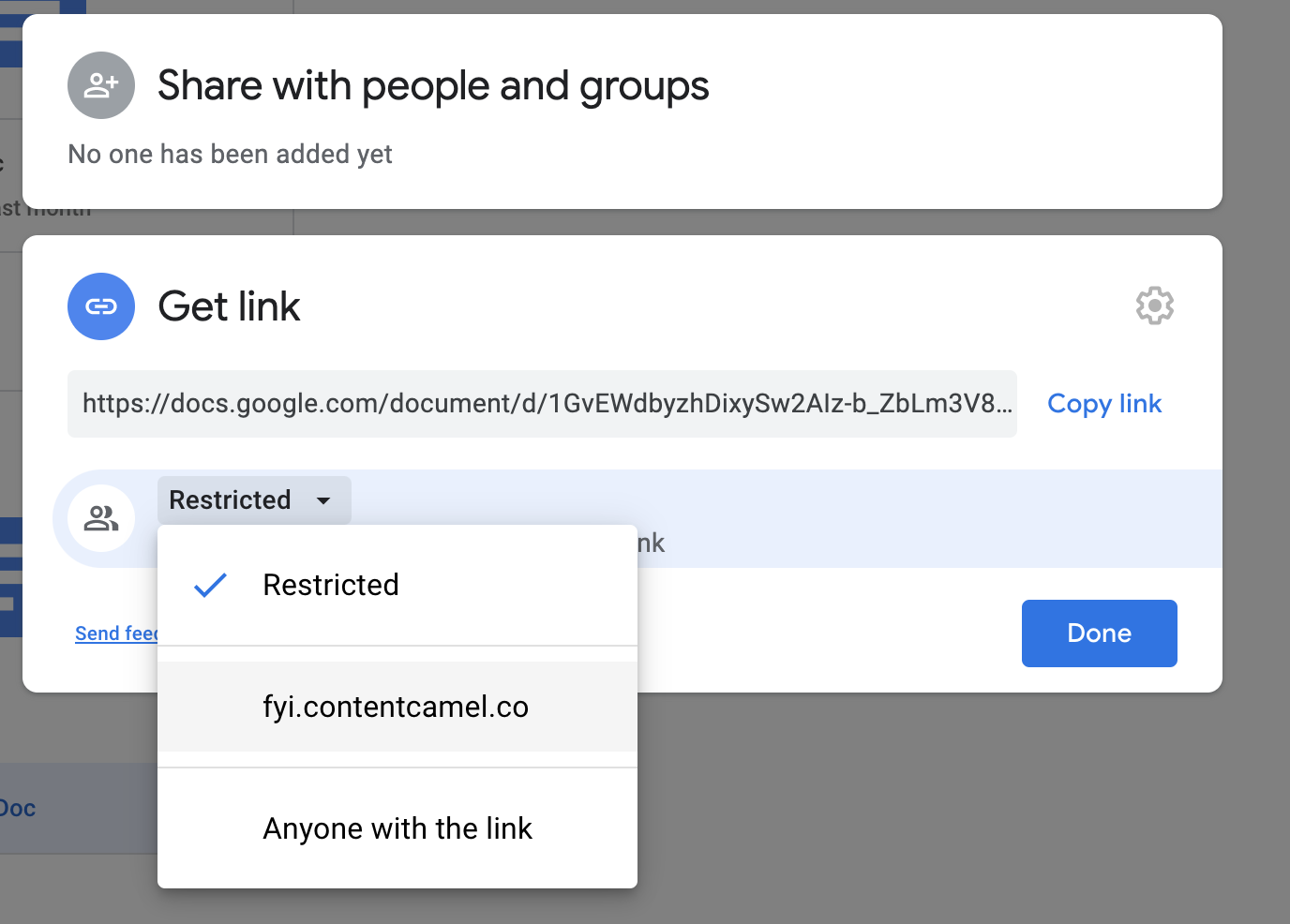
Step 6: Click Copy Link, then Done.
Step 7: Open your email draft and click the Insert Link icon, next to the Attach File icon.

Step 8: A box will appear where you add the text to display and paste the link you want to attach.
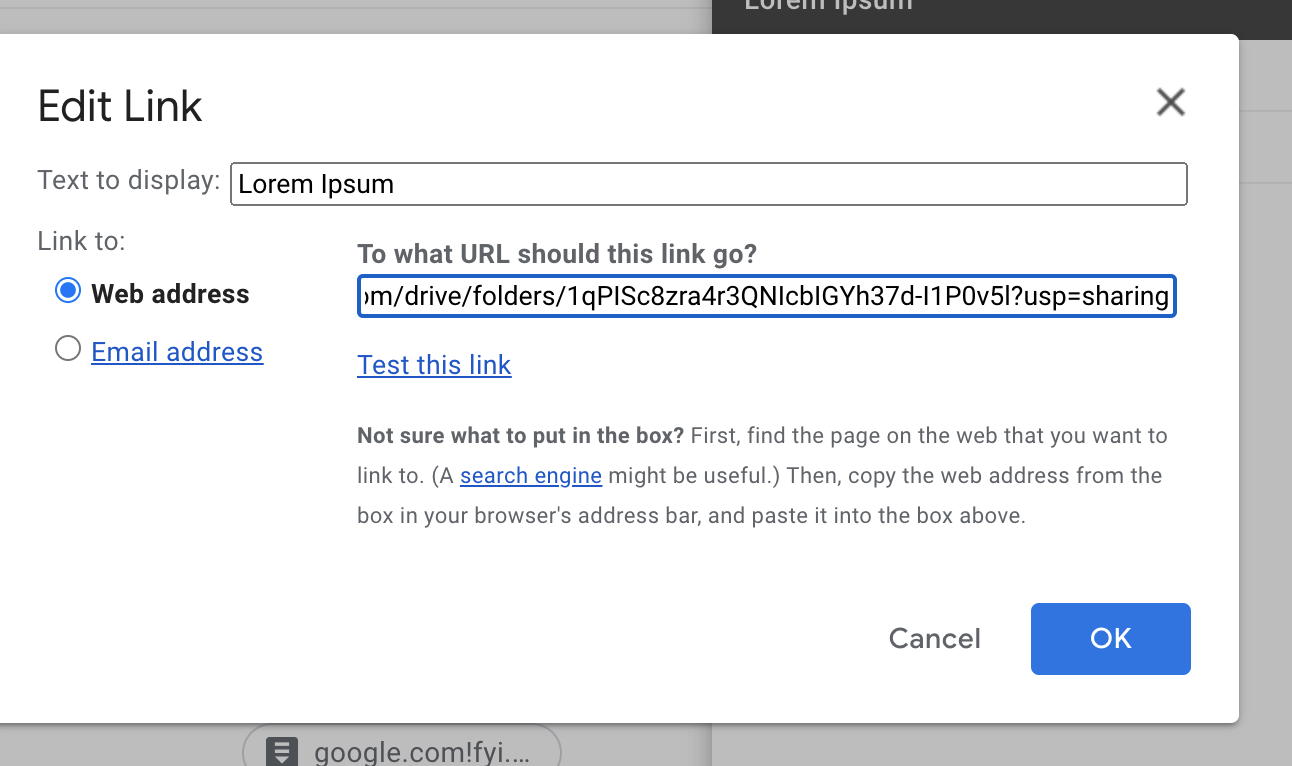
Step 9: Click OK, and your link will appear in the email just like in the screenshot below.
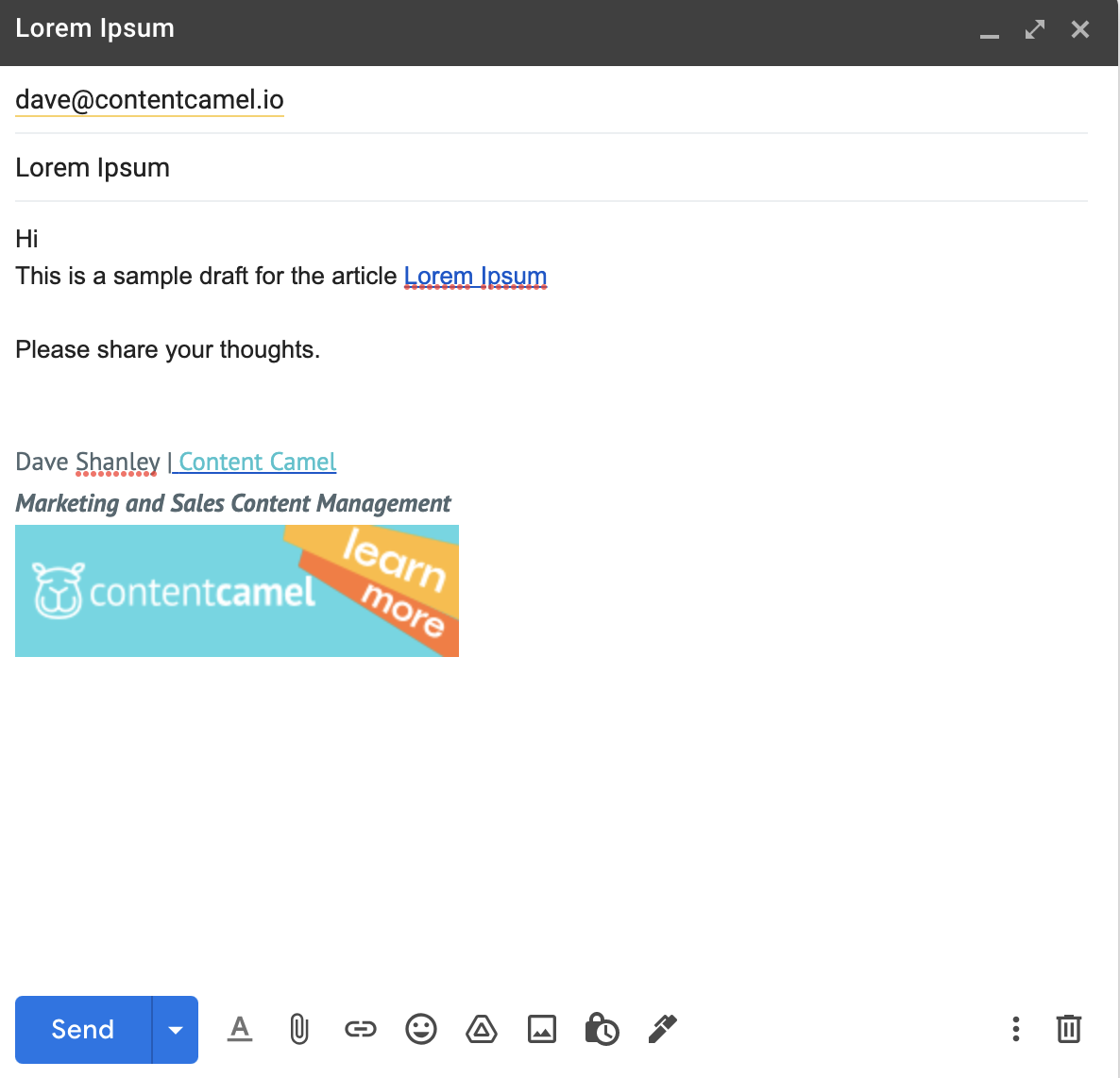
3. Sharing by a Public Link
Step 1: Follow Steps 1 to 3 from the method above to open the link box.
Step 2: In the text box, you’ll see an auto-generated URL for your video.
Step 3: Below the link, on the left side of the box, change the permission setting to Anyone with the link to share the video publicly.
Step 4: Click Copy Link, then Done.
Step 5: Paste the link wherever you’d like to share it, and you’re done.
Now that your video is shared… here’s the catch. How do you know whether it actually landed with your prospect — whether they opened it, watched it, or moved on? With Drive alone, you don’t.
If you want that inside view, you’ll need a tool built for sellers, one that can track your videos and feed your sales content strategy and help you deliver custom buyer experiences.
Sharing Videos To Win Deals
Video is a great way to capture a buyer’s attention and explain the features and benefits of a product or service. It can also help you build relationships with potential customers and show them what it’s actually like to work with your company.
That said, sharing video with colleagues and prospects can get tricky without the right tools. This doesn’t mean Drive isn’t useful — it absolutely is for everyday sharing. It does mean that when you’re sending video to customers, you really want customer insights so you can choose the content that’s landing and drop the content that isn’t.
Using technology to support your salespeople matters more than ever. The right tools help your team put their best foot forward and work more efficiently. It’s worth seeing what happens when you don’t use technology to enable your sales team.
How Content Camel Can Help
Beyond the occasional one-off video, Google Drive isn’t really built for sales — because, well, it isn’t a sales tool. And that’s okay; it was never meant to be one.
When you’re sharing video with leads, it helps to know what content is working and to get your reps up to speed quickly so they can engage buyers at every stage of the cycle. That’s exactly the gap Content Camel fills:
- Tracking on every link. When you share a video, Content Camel creates a customized short URL and then monitors how each recipient interacts with it — so you finally see the engagement Drive keeps hidden.
- A library organized for selling. Sort your content into funnel stages and types for faster navigation, easier updates, and a clearer picture of what to share next.
- Branded short links. Set up a custom domain with your own branding so your links look trustworthy and familiar — a small touch that makes prospects more comfortable clicking.
Collecting those interactions in one place gives you a focused view of each buyer’s experience, which makes it easier to spot concerns you’d never catch from a wider vantage point.
If you’d like to go deeper, here’s a look at which sales enablement tools belong in your stack.
Final Thoughts
Sharing a video on Google Drive is genuinely simple once you match the method to your intent — email for a specific person, a link in your message for convenience, or a public link for anyone. Where Drive runs out of road is the moment after you hit send, when you have no idea whether your video did its job. For a quick file hand-off, that’s fine… but for sales, that blind spot is exactly where deals quietly slip.
Ready to share video your buyers actually open — and finally see how it performs? Start free with Content Camel.
Build the foundation of your followup
Frequently Asked Questions
How do you share a video on Google Drive?
- Step 1: Right-click on the file or video.
- Step 2: Click Share.
- Step 3: Enter the recipient’s email address.
- Step 4: Set permissions (viewer, commenter, or editor) as needed.
- Step 5: Click Send.
Can you track your videos on Google Drive after sharing them?
On its own, Google Drive doesn’t tell you whether a shared video was ever opened. If you integrate Drive with Content Camel, though, document tracking lets you see exactly that. Learn more about how to share and track videos with Content Camel.
Is there a limit to how many videos you can share on Google Drive?
No, there’s no cap on the number of videos you can share. You can share as many as you like, as long as you have the storage to hold them.
Can you embed files from Google Drive?
Yes, you can embed files from Google Drive in your website, blog, or any other site. We cover embedding videos from Google Drive here.